

Style Work Highlights
Product & Brand Analysis
Analyzes your product’s category, features, and target buyers, along with your saved brand info, to suggest a fitting style and concept with the reasons why.
Ratios for Every Channel
Choose 4:5, 1:1, 3:4, or 5:4 and post right where you need it.
Direction
Describe the mood, color, or composition in one sentence, and ModoAI restyles that shot.
Pick by Goal
Before You Upload
- A clear product on a simple background gives the most accurate results
- Make sure the product fills at least 70% of the frame
- One front-view photo is required, and you can add left, right, back, top, and bottom views (up to 6)
- Choose a sharp, in-focus photo
- JPG, PNG, WEBP, and HEIC files are supported (up to 25MB per file)
STEP 01 · Add Your Brand Info
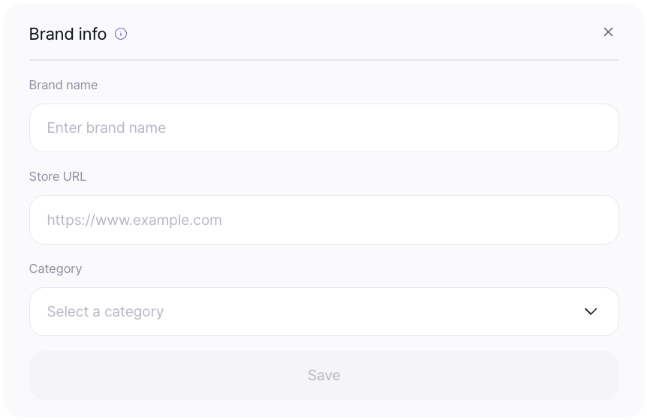
Save your brand info, and ModoAI makes more accurate suggestions for your brand.
- Open Brand info at the top of the workspace
- Enter your brand name, store URL, and category, then select Save
- To add it later, close it with X and skip to uploading
STEP 02 · Upload Photos
Upload one front-view photo and select Start with 1 to analyze your product.
- Add left, right, back, top, or bottom views (up to 6) for more accurate results
- If the analysis doesn’t match your product, you can edit it yourself
- No photo yet? Try Start with a sample image
- Shots made from a sample also use 1 credit per image
STEP 03 · Choose a Style
ModoAI suggests the style that fits your product, along with why it’s recommended.
- Want a different look? You can pick another style yourself
- Clean or Minimal suits thumbnails, and Lifestyle or Color Pop suits social feeds
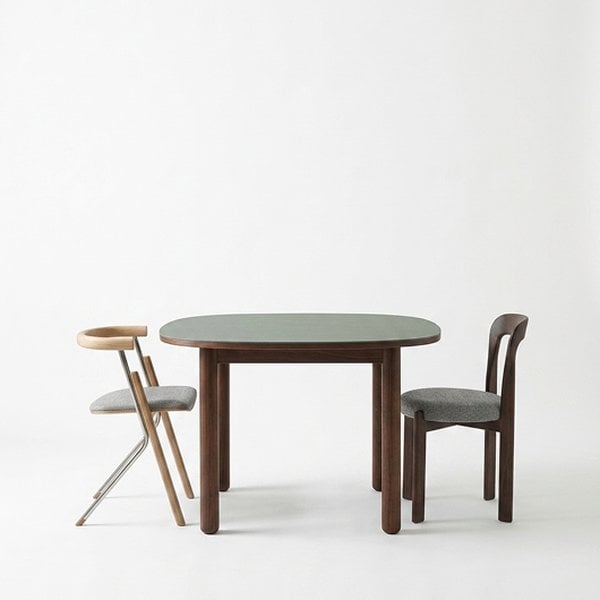
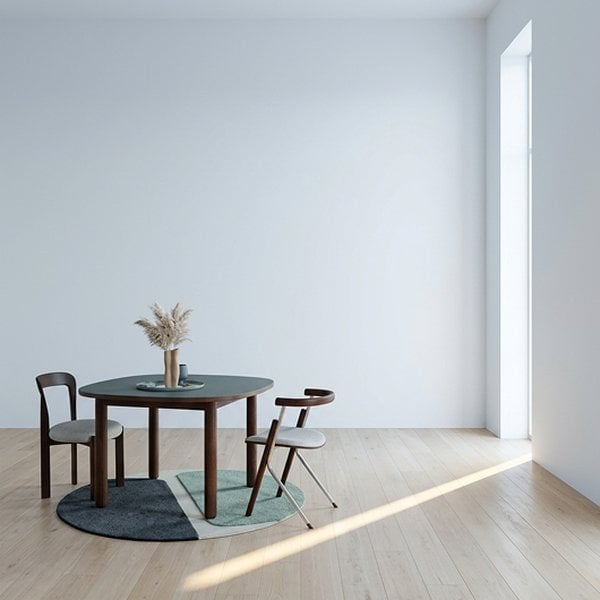
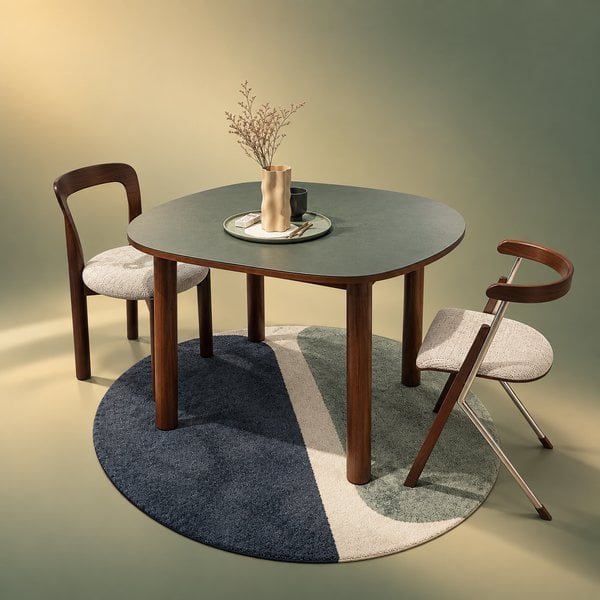
All 6 styles at a glance
All 6 styles at a glance
Six styles made from a single original photo.
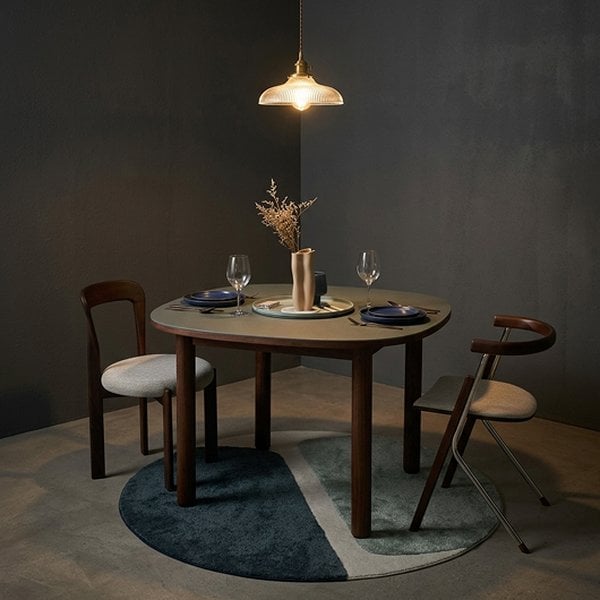
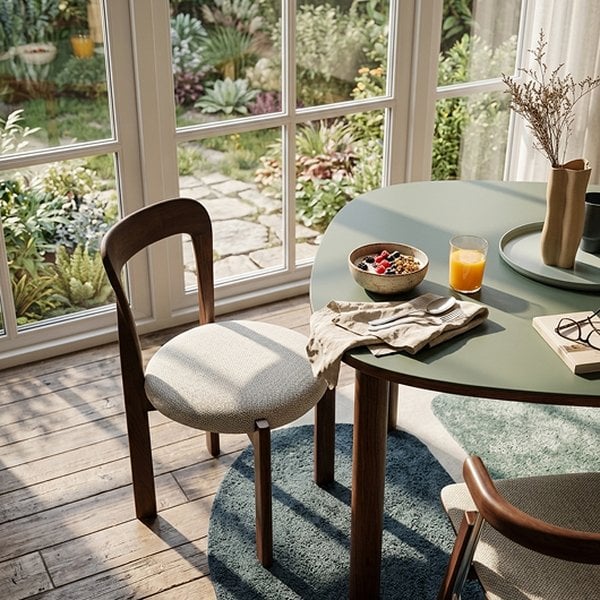
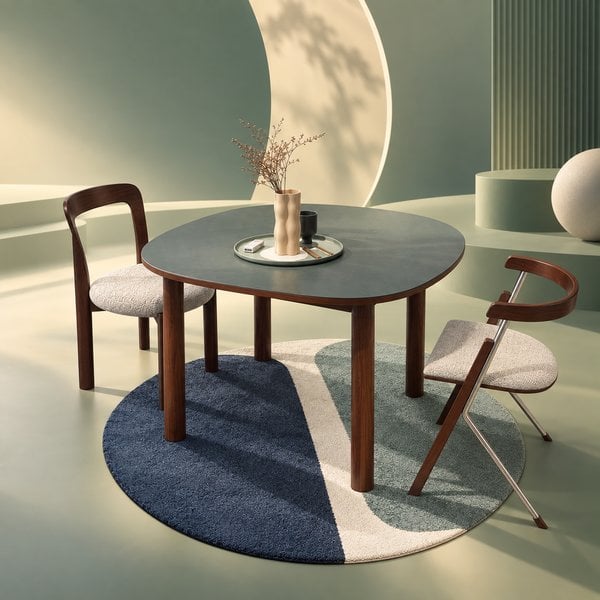
STEP 04 · Choose Concepts
ModoAI suggests concepts built to sell in your chosen style.
You can pick several to compare.
- Start by picking two or three to compare
- Want new ideas? Select Regenerate concepts (no credits used)
- Credits are used in the next step, when images are created
How to get new concepts
How to get new concepts
You don’t type a concept yourself. You choose from the ones ModoAI suggests.
If you have a different direction in mind, try this.
If you have a different direction in mind, try this.
- Select Regenerate concepts to get new suggestions without using credits.
- Create a shot with the closest concept, then use Edit to change it in one sentence, like “use a marble counter instead of the oak table.”
- If you want to set the background yourself from the start, Studio WorkBeta is a better fit.
STEP 05 · Choose a Ratio and Create
Choose the ratio for where you’ll use the image and select Start image shoot.
4:5 is the default.
- Each image uses 1 credit
- If generation fails, no credits are used
Recommended uses by ratio
Recommended uses by ratio
STEP 06 · Edit
Review your images and download them.
If there’s anything you’d like to change, describe it in one sentence in Edit.
- Your first edit is free, and each edit after that uses 1 credit
- You can change the mood, color, or composition