

Studio Work is a Beta feature.
We’re continuing to improve it for more natural results.
We’re continuing to improve it for more natural results.
Studio Work Highlights
Choose Your Background
Pick a ready-made studio background, or upload a photo of the space you want.
Adjust Space Ratio
Set how much of the frame the product fills with Wide · Medium · Close to get different compositions from the same background.
Direction
Describe the mood, color, or composition in one sentence, and ModoAI restyles that shot.
Pick by Goal
Before You Upload
One background photo sets the mood of your result.Choose a single shot with a clear tone.
Prepare your product photo using the same checklist as Style Work.
Backgrounds with people may have them removed, or generation may be blocked, under Human Figures & Image Rights.
Backgrounds with people may have them removed, or generation may be blocked, under Human Figures & Image Rights.
STEP 01 · Add Your Brand Info
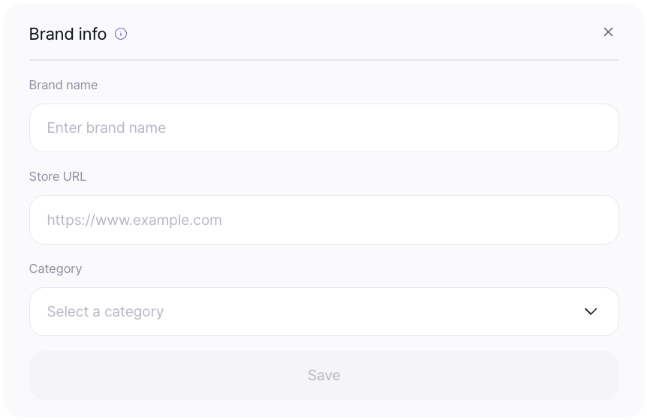
Save your brand info, and ModoAI makes more accurate suggestions for your brand.
- Open Brand info at the top of the workspace
- Enter your brand name, store URL, and category, then select Save
- To add it later, close it with X and go straight to uploading
STEP 02 · Choose a Background
There are two ways to set the background.
- Choose a studio: pick from backgrounds ModoAI provides
- Upload an image: add your own space, like a beach, store, or interior
- If you have a clear mood in mind, upload your own background
See an example: perfume + beach background
See an example: perfume + beach background
Results look most natural when the product’s character matches the background’s mood.
STEP 03 · Upload Your Product Photo
Upload your product photo and ModoAI analyzes it.
The process is the same as in Style Work.
- One front-view photo is enough to start
- If the analysis doesn’t match your product, you can edit it yourself
STEP 04 · Choose Shoot Options
Choose the Space ratio (product size in frame) and the aspect ratio.
- Wide 20~30% · Medium 40~60% · Close 70~80%
- Not sure about the composition? Choose AI Recommended.
It’s set to fit your product - Aspect ratios are the same as Style Work: 4:5 · 1:1 · 3:4 · 5:4
When to use each space ratio
When to use each space ratio
Recommended uses by ratio
Recommended uses by ratio
STEP 05 · Edit
Review your images and download them.
Want changes? Use Edit to ask for a different mood, color, or composition.
- Your first edit is free, and each edit after that uses 1 credit
- With Edit, you can restyle the same shot in a different mood